 Zen Analytics
All-in-one analytics toolZen Analytics Pixel Tracker
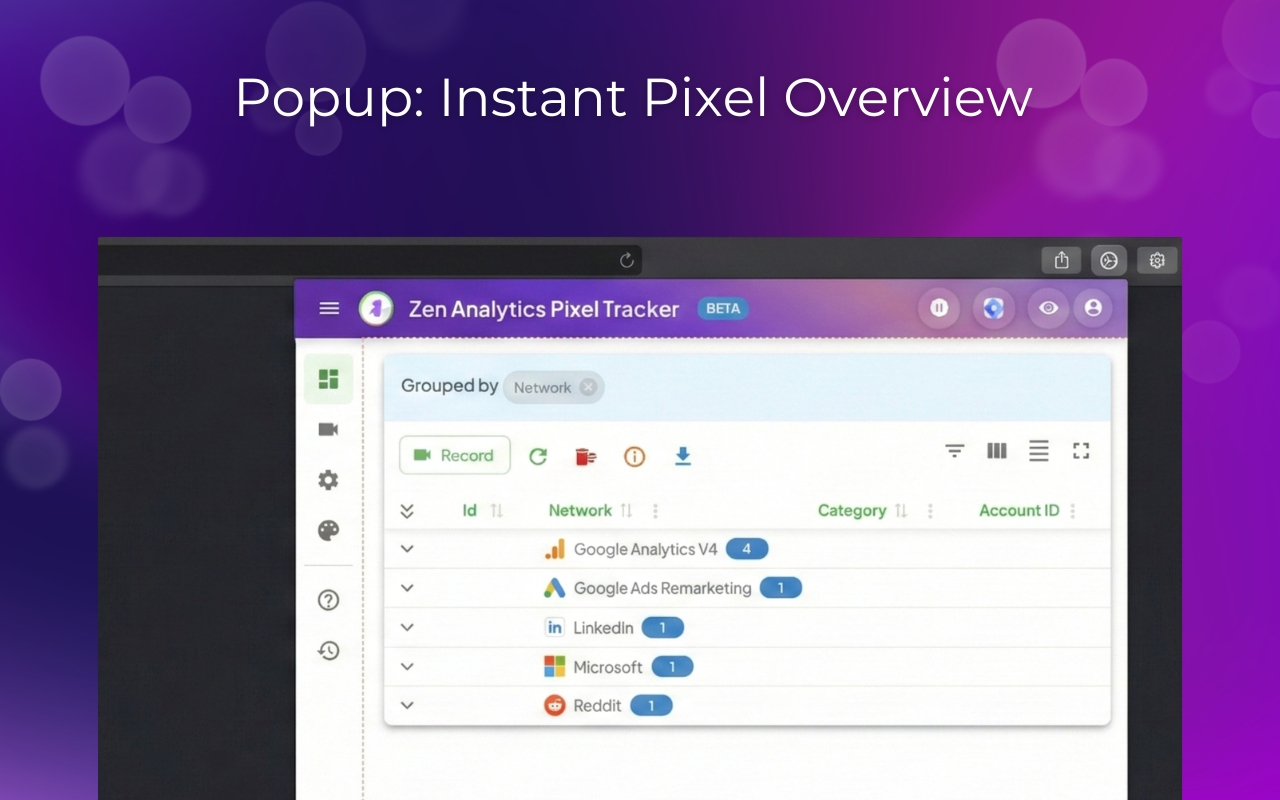
Monitor 20+ analytics (Google Analytics, Google Tag Manager, Facebook (Meta), Microsoft (Bing), Tiktok). View events, capture sessions & export findings via popup, sidepanel, devtool panel or in-page view.
Key Features
Unified Analytics Tracking
Monitor 20+ analytics platforms including GA4, GTM, Meta, TikTok, Twitter, and more in one place.
Advanced Filtering Options
Segment and organize trackers by classification, platform, processing time, and more. Supports sorting, sophisticated and multilayered grouping capabilities.
Multiple Access Methods
Access insights via extension Popup, DevTools panel (F12), or Sidepanel for seamless workflow integration
Performance Optimization
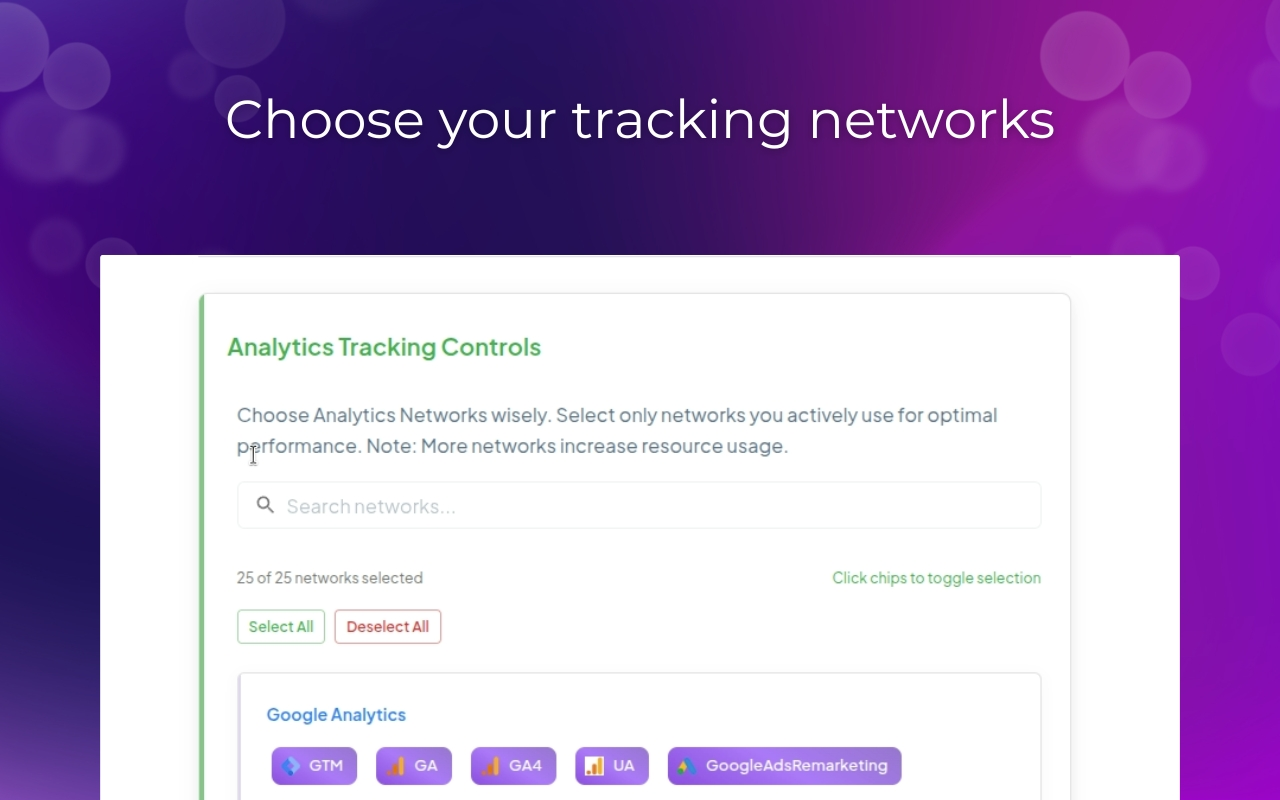
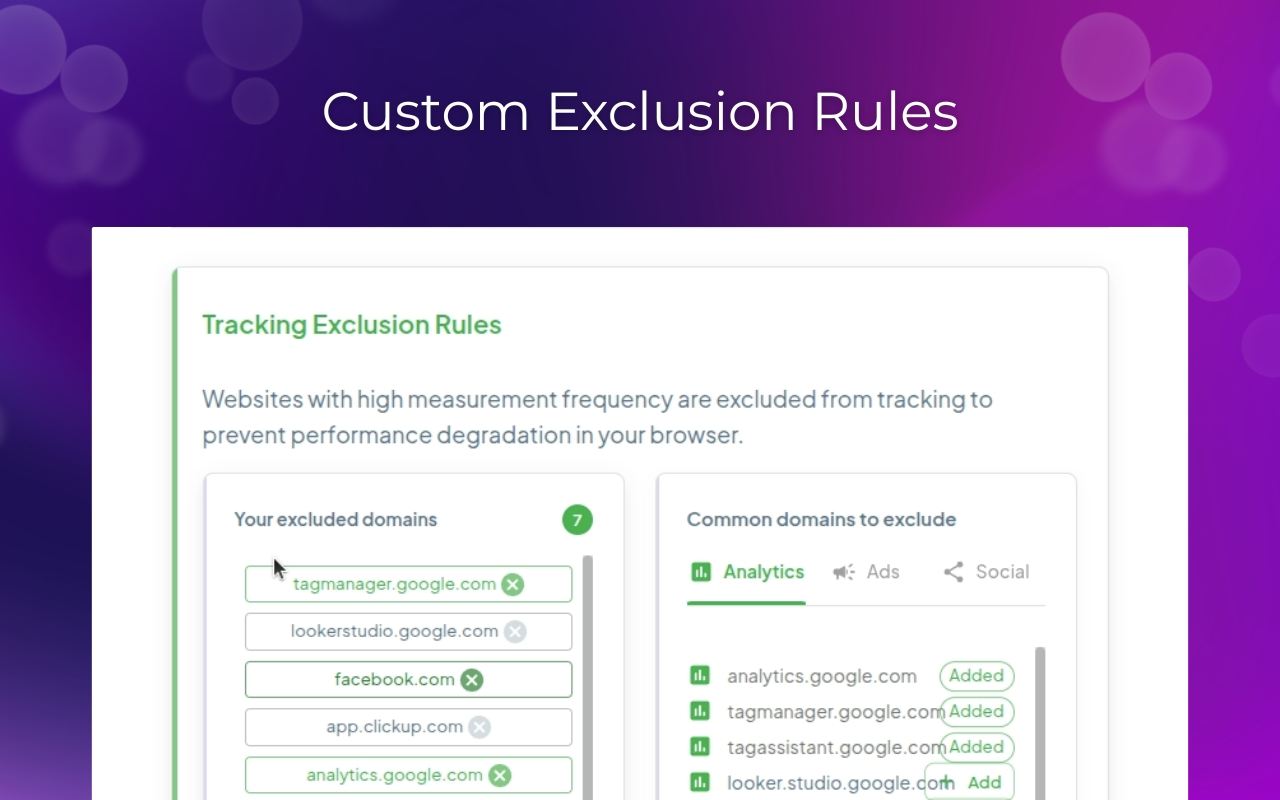
Optimize performance by selecting subsets of analytics networks and excluding domains from tracking to reduce resource usage
Session Capture & Export
Record your browsing analysis and export findings easily for comprehensive reporting.
GTM Tools & dataLayer Inspector
Examine Google Tag Manager events and dataLayer pushes in detail with dedicated tools.
Analytics in Action

Available on All Major Browsers
Install Zen Analytics on your favorite browser and start seeing analytics insights across platforms.

Firefox
The best Zen Analytics experience on Firefox.

Microsoft Edge
The best Zen Analytics experience on Microsoft Edge.
Safari
The best Zen Analytics experience on Safari.

Brave
The best Zen Analytics experience on Brave.
Frequently Asked Questions
Have questions about Zen Analytics? Find answers to common questions below.
Zen Analytics is a unified Chrome extension for debugging digital analytics and ad trackers. It aggregates data from 25+ platforms (including GA4, GTM, Meta Pixel, and TikTok) into a single interface, allowing marketers and developers to validate tracking implementation, inspect data layers, and troubleshoot conversion events without switching between multiple tools.
Yes, Zen Analytics is a free, comprehensive alternative that combines the functionality of Facebook Pixel Helper, Google Tag Assistant, and other platform-specific debuggers. It offers a unified view for 25+ trackers, plus advanced features like session recording and in-page overlays, which are not found in standard single-platform helpers.
You can install Zen Analytics directly from the Chrome Web Store. Search for "Zen Analytics Pixel Helper" or visit our official page to add it to your browser. It requires no account creation or complex setup—just install and start debugging immediately.
Zen Analytics automatically captures all outgoing GA4 network requests. It decodes the measurement protocol parameters into human-readable event names and properties. You can view these events in real-time in the extension popup, side panel, or in-page overlay to confirm that events like "purchase" or "add_to_cart" are firing with the correct parameters.
Yes, Zen Analytics includes a dedicated GTM debugger. It visualizes the `dataLayer` object state changes in real-time, allowing you to see exactly what data is available to your tags at any specific moment. It identifies GTM container IDs and tracks variable pushes.
Absolutely. Unlike platform-specific tools, Zen Analytics monitors all supported trackers concurrently. You can verify that a single user action (like a button click) correctly triggers events across Google Analytics, Meta Ads, TikTok Ads, and Microsoft Ads simultaneously, ensuring data consistency across your marketing stack.
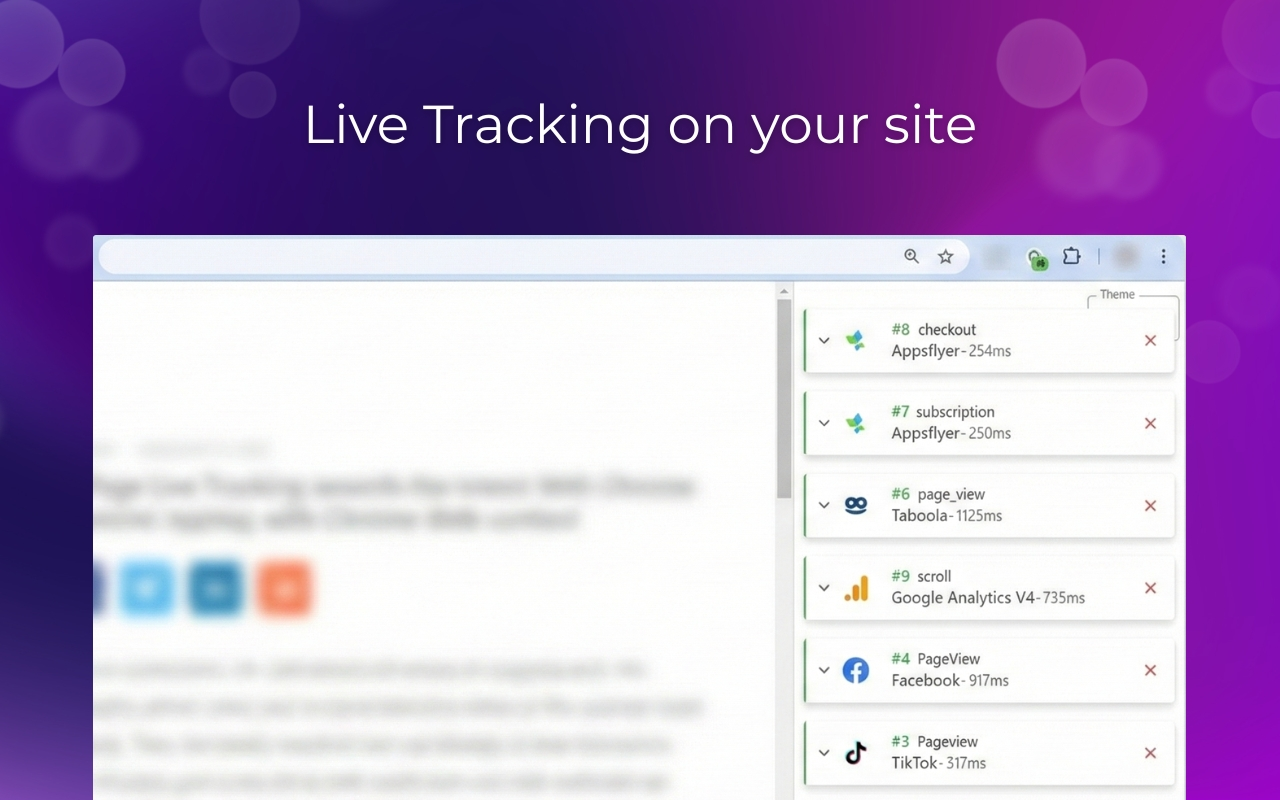
The In-Page Live Tracking injects a non-intrusive overlay directly onto the website you are testing. This allows you to see pixel firing notifications instantly as you interact with the page, without needing to constantly open the Chrome extension popup or developer tools console.
Yes, Zen Analytics features a Session Recording capability. You can record your browsing journey, capturing all fired events and tracker data. This session can be exported and shared with developers or stakeholders to provide proof of implementation or to report tracking bugs.
Yes, Zen Analytics includes a Consent Mode Inspector. It reads the `gcs` and `gcd` signals sent to Google services to verify the current consent state (granted/denied) for analytics and advertising storage, helping you ensure compliance with privacy regulations like GDPR and DMA.
Zen Analytics supports over 25 major platforms, including Google Analytics 4 (GA4), Google Tag Manager (GTM), Meta (Facebook) Pixel, TikTok Pixel, Microsoft (Bing) UET, LinkedIn Insight Tag, Pinterest Tag, Snap Pixel, Twitter (X) Pixel, Taboola, Outbrain, Mixpanel, and more.
Yes, Zen Analytics is optimized for modern web frameworks including React, Next.js, Vue, and Angular. It listens to History API changes and network requests, ensuring that virtual pageviews and dynamic events in SPAs are captured accurately without requiring a page reload.
No. Zen Analytics runs entirely locally within your browser as a developer tool. It passively monitors network traffic and JavaScript execution. It does not inject heavy scripts into your production code and has zero impact on your actual website visitors' load times or Core Web Vitals scores.
If a pixel isn't appearing, first ensure you have refreshed the page after installing the extension. Check if you have ad blockers active (like uBlock Origin), as they may block the trackers before Zen Analytics can see them. Also, verify that the tracker is actually firing network requests in the Network tab of Chrome DevTools.
The interface allows you to toggle specific network providers on or off. If you are only interested in debugging Facebook Pixel, you can deselect other providers in the settings or filter the event stream to show only events related to "Meta".
Zen Analytics primarily debugs client-side tracking (browser-based). However, if your server-side setup returns distinct response headers or fires companion client-side pixels, those will be visible. For pure server-to-server API calls that never touch the browser, you would need server logs.
You can open the Zen Analytics Side Panel by right-clicking the extension icon and selecting "Open side panel", or by using the browser's side panel selector. The side panel is ideal for persistent debugging while you navigate across multiple pages.
Yes. Zen Analytics is a debugging tool that runs locally on your device. We do not collect, store, or transmit your analytics data or browsing history to our servers. Your data remains entirely within your browser environment.
Currently, Zen Analytics is in Beta, and all "Premium" features (such as unlimited event history, session recording, and multi-view) are available for free to all users. We plan to introduce a tiered model in the future but will always maintain a robust free tier for essential debugging.
Yes, the Session Recording feature allows you to export the captured event logs. This is useful for auditing implementation quality or archiving tracking behavior for compliance documentation.
We release updates frequently to support new tracker versions (e.g., updates to GA4 protocols or new social media pixels). The extension auto-updates via the Chrome Web Store, ensuring you always have the latest definitions.